
Searching for the square root symbol can be frustrating when you need the correct character quickly. Maybe you’re finishing math homework, preparing a worksheet, or adding formulas to a document. Instead of wasting time looking through menus and symbols, you probably want a simple way to find, copy, and use the character without confusion or extra steps.
This guide gives you simple ways to use the square root symbol copy and paste method whenever you need it. You’ll also learn about the radical symbol copy paste, sqrt symbol, and square root sign copy paste options. Everything is explained clearly, so you can quickly find the right symbol and use it in your work.
Copy and Paste Square Root Symbol
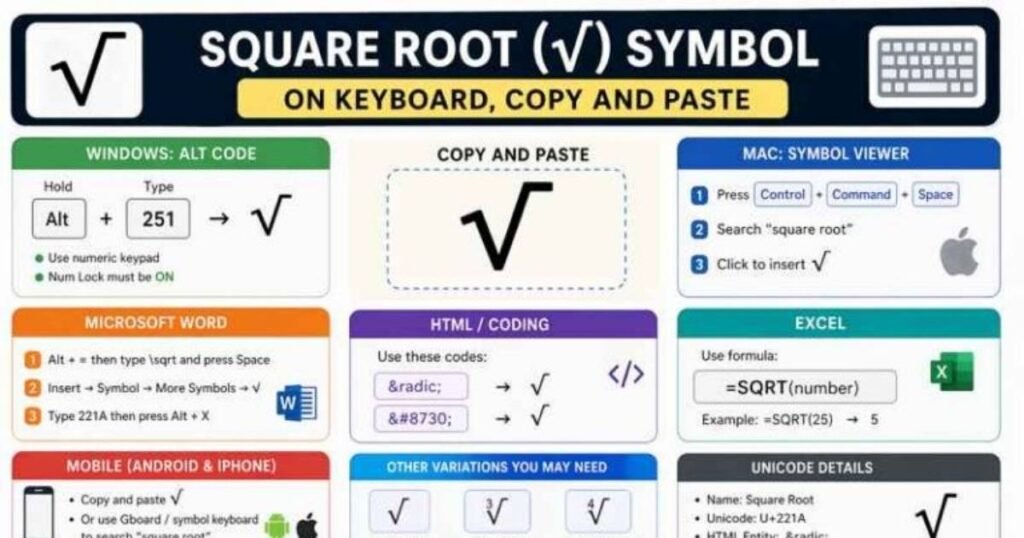
The square root is √, and copying it is one of the easiest ways to use it. You don’t need to remember a keyboard shortcut or search through special character menus. If you’re working on homework, notes, or a document, copying the character can save time and reduce small typing frustrations.
The square root is √. You can copy it quickly and paste it into documents, messages, worksheets, or online forms whenever you need a simple math character.
- Copy this symbol: √
- Select √ with your mouse or touchpad.
- Press Ctrl + C on Windows.
- Press Command + C on Mac.
- Place your cursor where needed.
- Press Ctrl + V or Command + V.
- Use √ in Word, Excel, Google Docs, and messages.
Alt Code (Windows)
On Windows, you can type the square root character with an Alt code when your keyboard has a numeric keypad. Turn on Num Lock first. Then hold the Alt key and type 251 on the numeric keypad. Release Alt after entering the numbers. The √ character should appear in your document, text box, or supported application without extra steps.
If Alt + 251 doesn’t work, don’t worry. Some keyboards and applications handle Alt codes differently. Laptops without a dedicated number pad may also make this method difficult. You can try Windows Character Map instead. Another simple option is to copy and paste √ directly. This can save time when the keyboard method isn’t convenient.
Square Root Symbol Shortcut Table
Different devices and apps offer different ways to enter √. This table compares useful shortcuts, codes, and methods, helping you choose the easiest option for your keyboard, software, or device.
| Method | Shortcut / Code | Where to Use |
| Copy and paste | √ | Most apps and websites |
| Windows Alt code | Alt + 251 | Windows numeric keypad |
| Unicode input | 221A + Alt + X | Microsoft Word |
| Word equation | \sqrt + Space | Microsoft Word equations |
| Mac shortcut | Option + V | macOS apps |
| Character Viewer | Control + Command + Space | Mac |
| Google Docs | Insert → Special characters | Google Docs |
| Excel formula | =SQRT(number) | Microsoft Excel |
| HTML entity | √ | HTML pages |
| Unicode code point | U+221A | Unicode-supported apps |
Read More : Arm Warmer Meaning: Uses, Benefits, Types, Materials & Style
Square Root on Mac
On a Mac, typing √ is simple once you know the right shortcut. Press Option + V to insert the character in many apps. You can also open Character Viewer with Control + Command + Space and search for “square root” if the shortcut doesn’t work.
- Use Option + V for a quick shortcut.
- Open Character Viewer with Control + Command + Space.
- Search for “square root” in Character Viewer.
- Select √ from the available symbols.
- Copy and paste √ when needed.
- Use it in documents, messages, and notes.
- Check the app if a shortcut behaves differently.
On Mobile (Android & iPhone)
Typing √ on a phone is easy when you know where to look. On Android, open the symbols or numbers section of your keyboard and search for √ if available. On iPhone, tap the numbers or symbols keyboard and check for the character. You can also copy √ from this page.
If your keyboard doesn’t show the character, copying is the simplest option. Press and hold √, choose Copy, then paste it wherever needed. You can use it in messages, notes, documents, search boxes, and many other apps on both Android and iPhone.
- Copy: √
- Android: Check the symbols or math section.
- iPhone: Check the numbers and symbols keyboard.
- Use long-press options when available.
- Paste √ into any supported text field.
- Save √ in your notes for quick access.
- Use copy and paste when shortcuts aren’t available.
In Microsoft Word
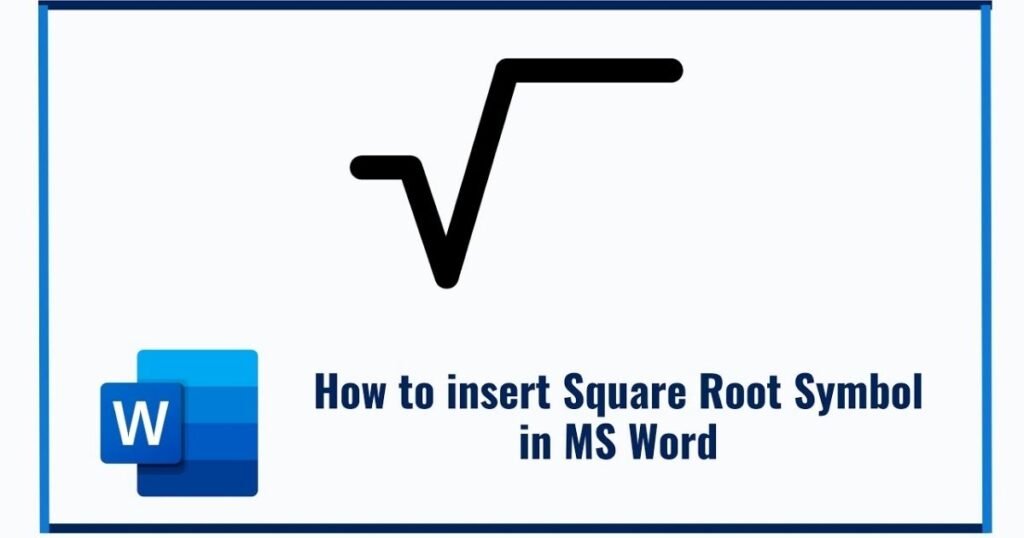
Microsoft Word gives you several easy ways to insert √. You can use the Insert tab and select Symbol, then choose the square root character. Another quick option is an equation. Press Alt + =, type \sqrt, and press Space to create a root sign.
You can also use Unicode in Word. Type 221A, then press Alt + X to convert it into √. If you use the character often, copy and paste it from another document. These methods work well for math assignments, reports, formulas, and worksheets.
- Insert → Symbol → More Symbols
- Use the √ character directly.
- Press Alt + = for an equation.
- Type \sqrt and press Space.
- Type 221A, then press Alt + X.
- Copy and paste √ when needed.
- Use Word equations for complex expressions.
Square Root in Google Docs
Google Docs makes it easy to add √ to your documents. Open the Insert menu and choose Special characters. Search for “square root” or “radical” in the search box. Then select √ from the results, and it will appear where your cursor is placed.
You can also copy √ from this page and paste it into Google Docs. This is useful when you need the character quickly. For longer math work, use Insert → Equation to create mathematical expressions with root notation.
- Open Insert → Special characters.
- Search for “square root.”
- Search for “radical” if needed.
- Select √ from the results.
- Copy and paste √ directly.
- Use Insert → Equation for formulas.
- Place the symbol wherever you need it.
HTML and Coding
In HTML, you can display the √ character with a simple entity code. The code √ creates the radical sign on a webpage. This method is useful when you need a reliable character in online content. You can place the code directly inside HTML text, and the browser will display the symbol correctly for visitors.
You can also use the Unicode value U+221A when working with coding languages, text editors, or digital systems. Unicode gives the character a standard identity across different platforms. The square root character is written as √. Many modern programming environments support Unicode, making it a practical choice for mathematical notation.
Another HTML option is the numeric character reference √. It also displays √ when used correctly in webpage code. These methods are helpful for websites, online calculators, educational pages, and other digital projects. Choose the method that fits your coding environment. Using standard character codes can also make mathematical content easier to maintain and edit.
Square Root Symbol in Excel
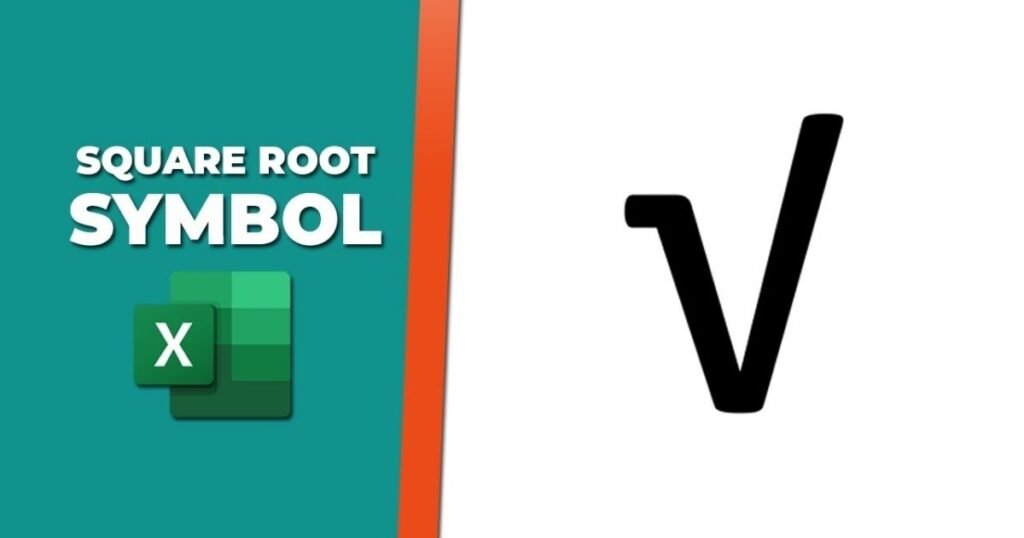
Excel lets you add √ in several simple ways. You can copy and paste the character directly into a cell. This works well for headings, labels, notes, and basic math content. Remember that the symbol itself doesn’t perform a calculation. For actual calculations, Excel uses formulas and functions.
The easiest calculation method is the SQRT function. For example, enter =SQRT(25) in a cell, and Excel returns 5. You can also combine text with a formula when you want to display a result alongside the √ character.
If you use √ regularly, keep a copy nearby for quick access. You can also use Excel’s symbol options when available. These methods help you add mathematical notation while keeping your spreadsheet simple, clear, and easy to read.
- Copy and paste √ directly into a cell.
- Use =SQRT(25) to calculate a square root.
- Use √ for labels or headings.
- Combine text and formulas when needed.
- Keep √ in a nearby note for quick access.
- Use Excel’s symbol options when available.
- Check formulas carefully before using results.
Practical Uses of the √ Symbol
The √ symbol represents a square root in mathematical notation. You’ll often see this root sign in equations, formulas, calculations, and educational materials.
Its use dates back to traditional mathematical notation and remains common in modern documents, software, and digital tools. The symbol makes a square root expression easy to recognize at a glance.
The interpretation may vary depending on the situation:
- Math equations: It shows the square root of a number, such as √25 = 5.
- Geometry: It helps calculate lengths, distances, and measurements in various formulas.
- Education: Students use the radical symbol when solving algebra and other math problems.
- Spreadsheets: The square root function can calculate values, while √ can label mathematical results.
- Technical writing: The square root character keeps formulas clear in scientific and engineering documents.
Unicode and Technical Details
The √ character has a standard Unicode identity that helps computers recognize and display it correctly. Its Unicode code point is U+221A, and its official Unicode name is SQUARE ROOT.
This standard makes the character useful across websites, apps, documents, and programming environments. It also provides several ways to represent the character in digital systems.
The interpretation may vary depending on the situation:
- Unicode: The character √ is represented by U+221A.
- HTML: You can use √ or √ to display the symbol.
- Text encoding: Unicode helps the character appear consistently across modern devices.
- Mathematical notation: The radical sign is commonly used in equations and square root expressions.
- Programming: Developers can use the Unicode character directly when their coding environment supports Unicode text.
Read More : TubeHalote Meaning: Review, Features & Everything You Should
Errors to Watch For
Using √ is usually simple, but small mistakes can cause confusion. Incorrect shortcuts, codes, or formulas may produce the wrong character or result, especially across different devices and applications.
Keep these common issues in mind when working with the radical sign:
- Wrong Alt code: Make sure Num Lock is enabled before using Windows Alt codes.
- Confusing symbols: Don’t mistake √ for the cube root symbol or other mathematical symbols.
- Incorrect Unicode: The correct Unicode value is U+221A.
- Formula mistakes: In Excel, use =SQRT(number) for calculations instead of treating √ as a formula.
- Formatting issues: Some websites or apps may not support every shortcut or character input method.
Quick Access Methods (Bullet Recap)
You can access √ quickly using several simple methods. Choose the option that fits your device, app, or typing style. Copy and paste is often the fastest choice.
- Copy and paste: √
- Windows: Use Alt + 251.
- Mac: Press Option + V.
- Word: Type 221A, then press Alt + X.
- Google Docs: Use Insert → Special characters.
- Mobile: Copy √ and paste it.
- HTML: Use √ or √.
Frequently Asked Questions
How do you type √?
You can type the square root by copying √ and pasting it. Windows users can also try Alt + 251 with a numeric keypad.
What does 5 √ 2 mean?
The expression 5√2 means five multiplied by the square root of two. The square root shows that 2 is under the radical.
What does 3 √ 27 mean?
The expression 3√27 means three multiplied by the square root of 27. The square root identifies 27 as the number being rooted.
How do I find √?
To find √, use a calculator, math formula, or square root function. The square root represents the value that produces a number when squared.
What is the square root symbol called?
The square root symbol is called the radical sign or square root sign. It is written as √ and commonly appears in mathematical notation.
What is the Unicode for the square root symbol?
The square root symbol has the Unicode code point U+221A. You can use this standard code when working with Unicode text, websites, and applications.
How do I copy the square root symbol?
To copy the square root, select √, press Ctrl + C, then paste it using Ctrl + V wherever you need it.
Can I use the square root in Word?
Yes, you can insert the square root in Microsoft Word through Symbol or Equation tools. You can also type 221A and press Alt + X.
Can I use the square root symbol in Excel?
Yes, you can paste the square root symbol directly into Excel cells. For calculations, use the SQRT function to find the square root of numbers.
How do I type the square root symbol on mobile?
On Android or iPhone, you can copy the square root and paste it into messages, notes, or documents. Some keyboards also include √.
Conclusion
The square root symbol is a simple but useful math character. You can use the square root in equations, documents, worksheets, and digital content. If you need quick access, a radical symbol copy paste method can save time. The square root copy and paste option also works well across many apps and devices. You can use the sqrt symbol when writing formulas or mathematical expressions.
Learning different ways to type the square root symbol makes everyday tasks easier. You can use keyboard shortcuts, Alt codes, Unicode, or copy and paste. The square root sign copy paste method is often the fastest choice when you’re in a hurry. Keep √ handy for quick use. Whether you’re working in Word, Excel, Google Docs, or on mobile, the square root helps keep mathematical content clear and easy to understand.